A practical tool for 3D character artists

Armor that fits.
Ready for the rig.

XYZ Studio Outfitter helps you fit modular armor to rigged characters, inspect mesh complexity, simplify and edit geometry and export your assets in GLB format. All from your browser.
Works with GLB assets Runs in your browser Made for modular armor
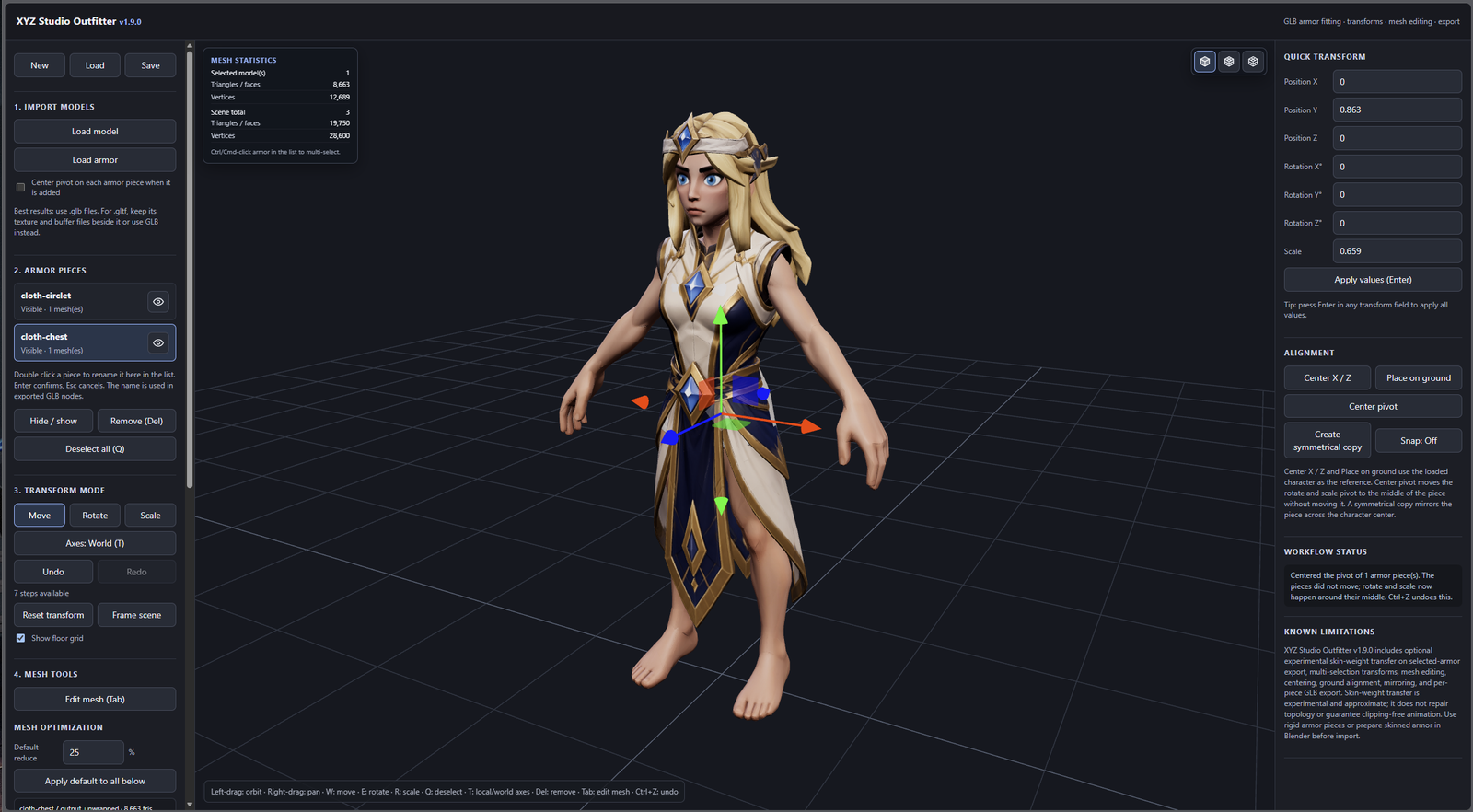
XYZ Studio Outfitter with a female elf character wearing a cloth chest piece and circlet, the armor list, transform tools and quick transform fields
Inside the workspace

Built around the way armor gets made.

Bring in a rigged character, fit separate armor pieces, then check the mesh before it goes into your game.

Fit modular armor

Adjust helmets, shoulders, chest pieces, gloves, legs and boots against your character model.

Read the mesh

Keep an eye on selected geometry and scene totals for triangles, faces and vertices as you work.

Export the pieces you need

Export selected armor together in one GLB, or include the character when the workflow calls for it.

Reduce polygon count

Decimate suitable static meshes and compare the result with the original geometry before export.

Keep control

Use familiar transform shortcuts, multi selection and undo while you work through a set.

Edit the mesh

Select vertices, edges or faces with a box, lasso or paint brush, then move or delete them to cut away parts of a piece you do not need. Reshape it with a sculpt brush or a deform lattice.

Solid and wireframe views

Switch the viewport between solid, wireframe over solid and wireframe only to check topology while you work.

Save your scene

Keep the character, every armor piece, your edits and your view in one file, and pick the work up again later.

Browser based

Open the workspace in a modern browser. Your GLB files are loaded into the local session.

A simple workflow

From model to game asset.

The tool keeps common fitting and export tasks close together, without making you jump between several apps.

01 / IMPORT

Load the character

Start with a rigged GLB and bring in the armor pieces you want to fit.

02 / FIT

Adjust the fit

Move, rotate, scale and align each piece against the character.

03 / INSPECT

Check and trim the geometry

Review mesh counts, simplify eligible static pieces and cut away parts you do not need in Edit mode.

04 / EXPORT

Export to GLB

Save selected armor together or export the character and armor as a combined asset.

Release notes

What is new.

A running record of changes, updated with each release.

v1.9.0Current release

Sculpt brush and deform lattice

  • New sculpt brush in Edit mode (key S). A round brush with size, hardness and strength. Pull and Push move the surface along its normal (Shift swaps them) and Move drags it with the pointer. It only touches what you can see, and only your selection when you have one.
  • New deform lattice. Pick the segments in width, height and depth, wrap the lattice around your selection or the whole piece, move its control points with the gizmo and everything inside follows softly. Apply keeps it, Reset points and Discard take it back.
  • A live count of how many people are using XYZ Studio Outfitter right now, shown in the app and next to the open button here. It is anonymous and stores nothing about you.
  • Free transform: with a piece selected, hold the left mouse button in empty viewport space and drag to move, rotate or scale on all axes at once with fine, eased movement. A plain click still clears the selection, and Alt + drag orbits.
  • A camera view box under the display icons: Perspective, Top, Bottom, Left, Right, Front and Back.
  • Merge selected into one joins two or more pieces into a single piece, for example after creating a symmetrical copy, so both sides export as one. The original pieces stay selectable and deletable separately in Edit mode.
  • Hidden pieces can no longer be clicked in the viewport.
  • Shared links now show a preview with the name, a description, an image and the icon, and the page carries proper search engine information.
  • Sculpting and lattice edits have their own Undo and Redo, and a finished edit is still one Ctrl+Z step.
v1.8.0

Edit mode and viewport display

  • New Edit mode. Select an armor piece and press Tab (or use Edit mesh) to work on its vertices, edges or faces, and press Tab again to finish. Keys 1, 2 and 3 switch between vertex, edge and face selection.
  • Select with a box, a lasso or a paint brush. Click picks the nearest element, Shift adds and Ctrl removes. A toggle chooses between selecting only what you can see or selecting through the model for box and lasso. Paint selection always selects only what is visible.
  • Move, rotate or scale the selection with the gizmo, or delete it to cut away parts of a model you do not need. Select connected (C) grows the selection to everything joined to it. An Isolate switch hides the character and the other armor while you edit (off by default). Edit mode has its own Undo and Redo, and Cancel discards your edits. Finished edits are kept in saved scenes and exported GLB files, and Ctrl+Z undoes them as one step.
  • Three display modes in the top right of the viewport: solid, wireframe over solid and wireframe only. Your choice is saved with the scene.
  • Hold Shift while using the gizmo to flip snapping for as long as you hold it. It uses the same step values as the Snap button.
  • The transform fields (position, rotation and scale) now sit at the top of the right panel.
v1.7.0

Save scenes and local axes

  • New, Load and Save buttons at the top of the left panel. A scene file keeps the character, every armor piece, names, positions, pivots, mirrored copies, optimized meshes, your view and the axes setting.
  • New and Load ask whether to save first when you have unsaved changes, and a damaged scene file never changes your current scene.
  • Redo button next to Undo (Ctrl+Y or Ctrl+Shift+Z).
  • An eye icon beside each armor piece in the list hides or shows it in the viewport, with Undo support.
  • The import buttons are now called Load model and Load armor.
  • New Axes button switches the move and rotate gizmo between world axes and the piece's own local axes. Press T as a shortcut.
v1.6.0

Pivot centering and quicker editing

  • Press Delete to remove the selected armor pieces. Ctrl+Z brings them back. On a Mac, the Delete key works too.
  • New Center pivot button moves the rotate and scale pivot to the middle of each selected piece without moving the piece.
  • New option to center the pivot automatically on every armor piece you add.
  • Rename a piece directly in the armor list instead of in a popup. Enter confirms and Esc cancels.
v1.5.1

Loading progress and fixes

  • Added a loading bar that shows progress while character and armor files are loaded into the scene.
  • Several armor files added at once now load one after another, and any file that fails is named.
  • Fixed an issue that could leave the viewport blank and stop character and armor imports from working.
  • Shows a clear message if the 3D engine cannot be loaded.
  • Mirrored copies now reflect rotation correctly and no longer change the material of the original piece.
  • Undo now restores a piece name after a rename.
  • Exported character file names no longer keep the original .glb extension in the middle.
v1.5.0

Symmetry and armor naming

  • Create a mirrored copy of an armor piece across the character center.
  • Rename armor pieces directly from the scene list.
  • Keep custom names on exported GLB nodes.
  • Continue exporting several selected armor pieces in one file.
v1.4.0

Experimental skin weight transfer

  • Optional skin weight transfer during armor export.
  • Export can include the character skeleton and available animation clips.
v1.3.0

Multi selection workflow

  • Export selected armor pieces together.
  • Move, rotate and scale multiple pieces around a shared pivot.
  • Hide, show, reset, center, ground align and optimize selected pieces.
v1.2.0

Mesh optimization

  • Per mesh reduction settings and detail protection.
  • Compare original and optimized geometry.
v1.1.0

Mesh statistics and decimation

  • Selected model and total scene counts for triangles, faces and vertices.
  • Multi selection for optimization.
v1.0.0

First release

  • Import rigged characters and separate GLB armor pieces.
  • Transform, fit and export armor in the browser.
  • Keyboard shortcuts and undo history.

Put your next armor set together.

Open the workspace and start with the character and GLB pieces you already have.

Open the software

Support XYZ Studio Outfitter

Thank you for supporting XYZ Studio Outfitter. Every donation helps keep it free and growing.